
In Q1 2026, the ransomware gang LockBit 3.0 hit 1,200 companies worldwide, encrypting over 2 petabytes of data and demanding an average ransom of $85,000 per victim 【Cybersecurity Report 2026, Verizon】. For a solo video editor, a single encrypted project can erase weeks of work and cost more than a high‑end external SSD. A solid backup plan is therefore a baseline safety net, not a luxury.
How to Backup Your Computer: Why Backup Matters in 2026
Data‑Loss Trends & Costs
According to the 2025 Data Protection Survey by IDC, 42 % of small businesses experience a data‑loss incident each year, and the average recovery expense tops $7,800. Individual creators face similar stakes: a lost video archive can wipe out months of revenue while the hardware replacement cost is only a fraction of the loss.
Sync Services vs. True Backups
Most people treat OneDrive, Dropbox, or iCloud as “backup.” In reality they are sync tools: they mirror changes across devices. If you delete a file locally, the deletion propagates to every synced copy. A true backup stores a separate, immutable copy that can be restored even after the original is gone.
Regulatory & Privacy Implications
Data‑protection laws such as GDPR and California’s CCPA require you to retain records for defined periods. A backup strategy that includes versioning and off‑site storage helps you stay compliant while keeping encryption keys under your control.
Cloud Storage Is Not a Backup
Sync vs. Backup: Technical Distinctions
Sync services continuously watch a folder and push changes in real time. Backup software, by contrast, takes snapshots at scheduled intervals and retains previous versions. This snapshot model lets you roll back to a point before corruption or accidental deletion.
Versioning Limits of Popular Services
OneDrive retains version history for 30 days on the free tier, 30 days on a basic Microsoft 365 subscription, and up to 60 days on the Family plan; longer retention is available only with optional add‑ons. Dropbox’s free tier also offers 30 days of version history. Google Drive keeps up to 100 versions of a file that has been modified within the last 30 days for personal accounts; Google Workspace customers receive the same limit but can request extended retention through admin settings.
Real‑World Risks of Relying on Sync
Ransomware that encrypts a local drive will also encrypt any connected sync folder. When the infected machine reconnects, the malicious client overwrites the cloud copy. A separate, immutable backup stored offline or in a service that supports “write‑once” retention breaks this cascade.
Performance Needs: Speed vs. Capacity
If you work with 4K footage or large CAD files, an SSD’s low latency prevents backup queues from stalling your workflow. For pure document archiving, a 2‑TB HDD provides ample space at a lower price point.
The 3‑2‑1 Rule Revisited: Free or Low‑Cost Options
Local Copy: SSD vs. HDD
External SSDs deliver transfer speeds of 500 MB/s or more, making daily backups finish in minutes. HDDs are slower (100‑150 MB/s) but cost roughly half per terabyte. For a 1‑TB backup, a $70 SSD beats a $35 HDD in speed while still being affordable.
Secondary Copy: Free Cloud Tiers
Google One supplies 15 GB free, Microsoft OneDrive 5 GB free, and Backblaze offers a 30‑day trial limited to 10 GB of storage. Pair an SSD with one of these services and you satisfy the “off‑site” leg of the rule without paying a monthly fee.
Off‑Site Copy: Physical Storage Options
Rotate a second external drive monthly and store it in a fire‑safe at a trusted friend’s house. The drive stays disconnected, protecting it from ransomware that can only reach online or locally attached media.
Choosing the Right Local Storage
Cost vs. Longevity: SSD vs. HDD
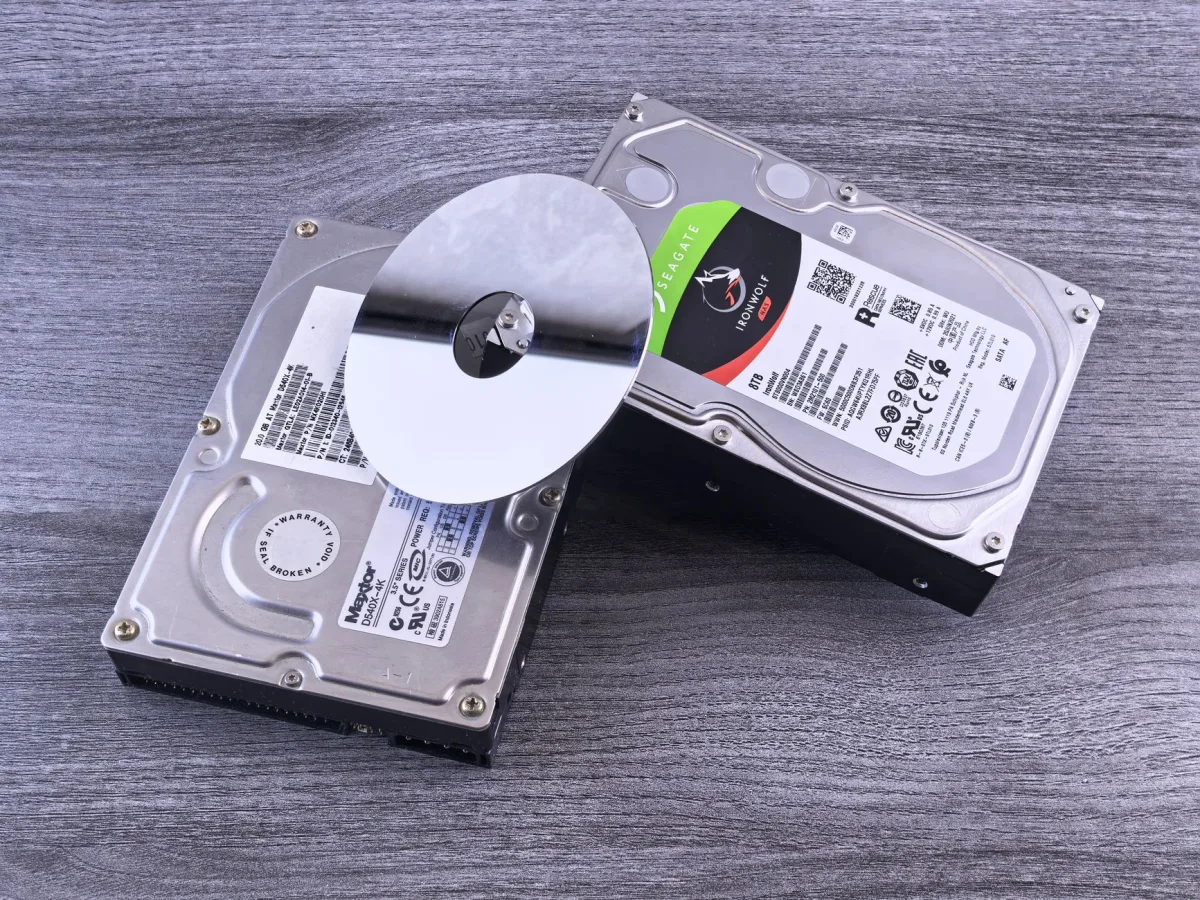
SSD endurance is measured in terabytes written (TBW). A typical consumer 1 TB SSD rated for 600 TBW will outlast a 2 TB HDD that averages 30‑40 GB of daily writes over a three‑year span.
Reliability & Warranty Considerations
Look for drives with at least a three‑year warranty and SMART monitoring support. Brands that include hardware encryption (AES‑256) add a layer of security for an off‑site drive that might be lost or stolen.
Step‑by‑Step Local Backup Setup
Windows: File History & System Image
1. Connect your external drive.
2. Open Settings → System → Storage → Advanced storage settings → Backup options.
3. Turn on File History and select the external drive as the destination.
4. For a full system image, open Control Panel, go to System and Security → Backup and Restore (Windows 7), and click Create a system image. Choose the same external drive and follow the wizard.
macOS: Time Machine Configuration
1. Plug in your external SSD or HDD.
2. Open System Settings → General → Time Machine.
3. Click Select Disk, choose the drive, and enable Back Up Automatically.
4. To encrypt, tick the Encrypt backups box; the password is stored in your Keychain.
Linux: rsync & Snapshots
Use rsync for incremental file backups and btrfs or zfs snapshots for full‑system protection.
# Example rsync command
rsync -a --delete /home/username/ /mnt/backup/home/
# Create a btrfs snapshot (requires btrfs volume)
btrfs subvolume snapshot / /mnt/backup/snap_$(date +%F)
Free & Affordable Cloud Backup Options
Google One 15 GB: How to Use for Backup
Install Backup and Sync (now part of Google Drive for desktop). Choose “Back up only these folders” and point to Documents, Pictures, and Desktop. Enable version history in Drive settings to retain up to 100 versions for the last 30 days.
OneDrive 5 GB: Best Practices
Open the OneDrive icon in the taskbar, select Manage OneDrive Backup, and stop the default folder backup if you prefer a dedicated backup tool. Store only essential files in the free tier; larger data should go to a paid plan or a local drive.
Backblaze Trial & Pricing
Backblaze offers a 30‑day trial limited to 10 GB of storage. After the trial, unlimited backup costs $7 per month. Install the client, select the external drive as a source, and let the service keep continuous versions for 30 days (extendable to a year with the “Extended Version History” add‑on).
Third‑Party Backup Apps
IDrive provides 5 TB for $60 per year and includes mobile apps for Android and iOS, making it a solid choice for cross‑device protection. Acronis True Image adds ransomware protection and disk‑cloning tools at $69.99 per year.
Full System Imaging: When and How
Acronis True Image: Features & Pricing
Creates a complete image of OS, apps, and data. Includes active ransomware protection, cloud sync, and the ability to mount images as virtual drives. Pricing starts at $69.99 per year for a single PC.
ShadowProtect SPX Desktop Overview
Enterprise‑grade imaging with instant recovery and block‑level delta backups. Ideal for HP laptops running Windows 11 where rapid restore is critical. Licensing is per‑core; a typical workstation costs $399 for a perpetual license.
Windows 11 Backup & Restore
Access via Settings → System → Backup. Choose “Backup using File History” for files or “Backup and Restore (Windows 7)” for a system image. The built‑in tool lacks the granular scheduling of third‑party apps but is sufficient for occasional full‑disk snapshots.
Pros vs. Partial File Backup
Full images let you reinstall the OS and all programs in minutes after a drive failure. File‑level backups are quicker for daily changes but require you to reinstall apps manually after a catastrophic loss.
Automating Your Backup Workflow
Scheduling & Frequency Settings
Set File History to run every hour; Time Machine defaults to hourly; Acronis and Backblaze run continuously in the background. For high‑value creative work, add a real‑time copy tool that mirrors new files to the external SSD as soon as they appear.
Versioning & Retention Policies
Configure retention to keep daily versions for the past 30 days, weekly for three months, and monthly for a year. This balances storage consumption with the ability to recover older revisions.
Monitoring, Alerts & Verification
Enable email notifications in the backup client. Run a quarterly “restore drill” by retrieving random files to a separate folder and confirming they open. A simple script can compare file hashes between source and backup to verify integrity.
Common Mistakes & Troubleshooting
Missing System Files in Backups
Many users rely solely on File History, which skips system folders like C:\Windows. Pair a file‑level backup with a monthly system image to capture drivers and registry entries.
Unintended Overwrites & Version Loss
If you use OneDrive as a backup, a mistaken bulk delete propagates instantly. Protect against this by enabling version history and keeping an offline copy of the most recent backup.
Forgotten External Drives & Physical Security
Store the drive in a fire‑rated safe or a locked drawer. Label the drive with a QR code that links to your backup policy document stored in a password manager.
Backup Software Misconfiguration
Leaving “run on battery” enabled can cause frequent interruptions on laptops. Disable it, or schedule backups for when the machine is plugged in and idle.
Persona‑Based Backup Plans
| Target Persona | Recommended Option | Key Reason & Real‑World Benefit |
|---|---|---|
| Freelance Creator | 1 TB SSD + Backblaze (10 GB trial, then $7/mo) | Fast local restores for large media files; off‑site versioning protects against studio theft. |
| Small Business Owner | 2 × 4 TB HDD RAID 1 + IDrive 5 TB | Redundant local storage guards against drive failure; cloud tier meets compliance and remote access. |
| Enterprise IT Admin | ShadowProtect SPX + Azure Immutable Blob | Block‑level imaging for rapid disaster recovery; immutable cloud storage defeats ransomware. |
| Tech‑Savvy Hobbyist | 2 TB NVMe Enclosure + Google One 15 GB + weekly Acronis image | High‑speed local copy for nightly builds; cheap cloud tier for off‑site safety. |
| Non‑Tech User | 1 TB HDD + OneDrive Free + Time Machine (Mac) | Plug‑and‑play simplicity; automatic backups require no manual scheduling. |
People Also Ask: Quick Answers
- How long does a full backup take? On a 1 TB SSD, a full image finishes in 15‑20 minutes; on a 2 TB HDD, expect 45‑60 minutes.
- Can I recover a deleted file from cloud? Only if the service retains version history. OneDrive’s free tier keeps files for 30 days; Backblaze retains 30‑day versions by default.
- Is an SSD more reliable than an HDD for backups? SSDs have no moving parts, so they survive drops better and typically last 5‑10 years versus 3‑5 years for HDDs.
- What is the best free backup software? Windows File History, macOS Time Machine, and Linux
rsyncare built‑in, cost‑free solutions that meet the 3‑2‑1 rule when paired with an external drive.
Final Checklist & Action Plan
- Buy a 1 TB external SSD and configure File History (Windows) or Time Machine (macOS).
- Activate a free cloud tier (Google One or OneDrive) and point your backup client to it for off‑site redundancy.
- Create a monthly system image with Acronis, ShadowProtect, or Windows Backup.
- Schedule a quarterly restore drill; document the steps in a password‑manager note.
- Rotate an offline HDD every 30 days and store it in a fire‑safe or a trusted friend’s house.
- Enable encryption on all external drives and verify that SMART health data is monitored.
By following the 3‑2‑1 rule, automating schedules, and testing restores, you turn “How to Backup Your Computer” from a checklist into a reliable safety net for 2026 and beyond.