
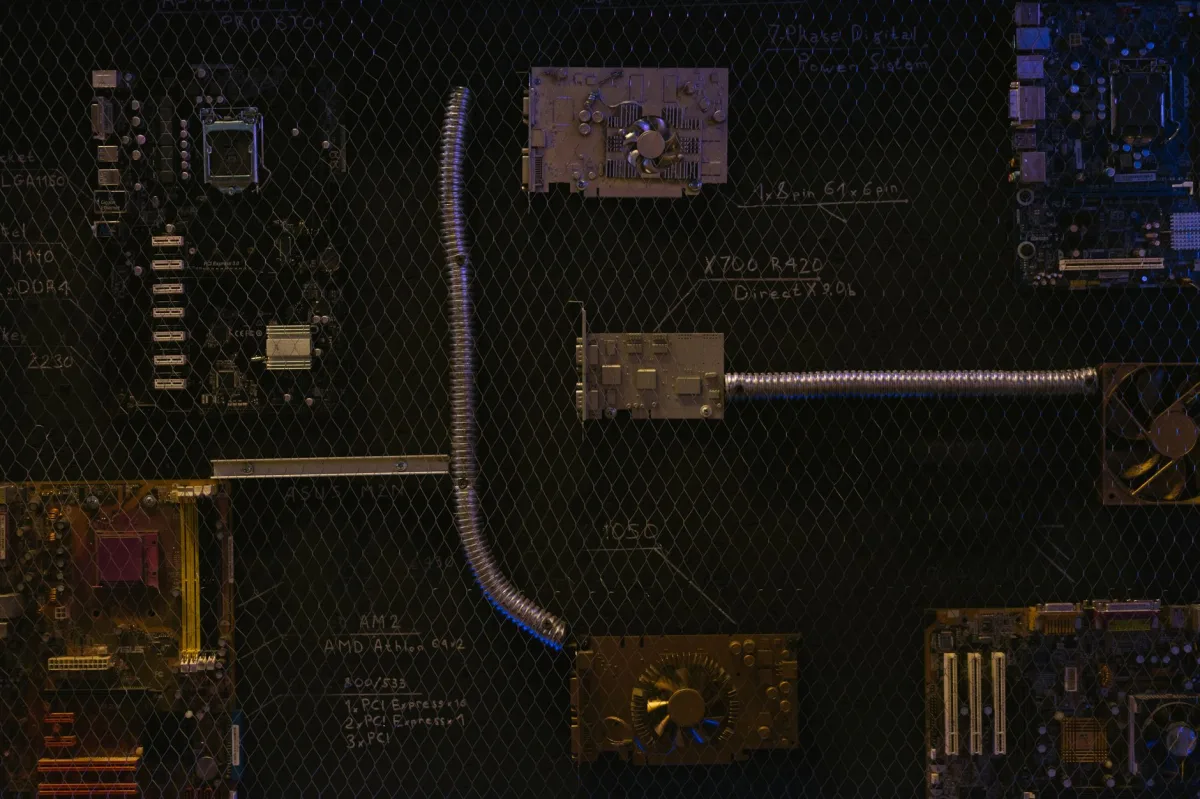
Picking a motherboard in 2026 feels harder than picking the GPU bolted to it. Every brand screams about phases, lanes, and "future-proof" headers, while half the marketing ignores what actually matters: whether the board fits your case, powers your CPU cleanly, and gives you a sensible upgrade runway. This guide cuts through that noise with a hands-on framework for choosing the right board for your budget, workload, and timeline, and shows why expensive flagship models often lose to cheaper siblings that focus on the features you actually use.
The goal of how to choose a motherboard in 2026 isn't to chase the biggest spec sheet. It's to match socket, chipset, power delivery, and connectivity to the CPU and workloads you care about, then avoid paying for features you'll never touch.
Why a Motherboard Matters: Quick Answer
Key role in PC builds
The motherboard is the central nervous system of your PC. It dictates which CPU fits, how much and what kind of RAM you can install, how many GPUs and SSDs you can run at full bandwidth, and how cleanly power gets delivered to every component. A great CPU on a weak board throttles, crashes, or simply refuses to boot. A great board on a mismatched CPU wastes money on features it cannot use.
Definition: A motherboard is the main printed circuit board that determines CPU compatibility, expansion card support, PCIe bandwidth, overclocking capability, RAM speeds, and storage device connectivity.
How it connects components
Modern boards route everything through the CPU and a Platform Controller Hub (PCH). The CPU handles memory and the fastest PCIe lanes, while the PCH manages secondary lanes, USB, SATA, and networking. That split is why chipset choice matters as much as socket choice: the chipset defines which peripherals you can plug in and at what speed.
Why choosing right matters
Choosing right means your system boots reliably, your SSD hits its rated speeds, your GPU doesn't bottleneck, and you can drop in a faster CPU two years from now without buying a new board. Choosing wrong means returns, BIOS update headaches, or a board that can't push the CPU it's paired with.
2026 Motherboard : New Standards & Features
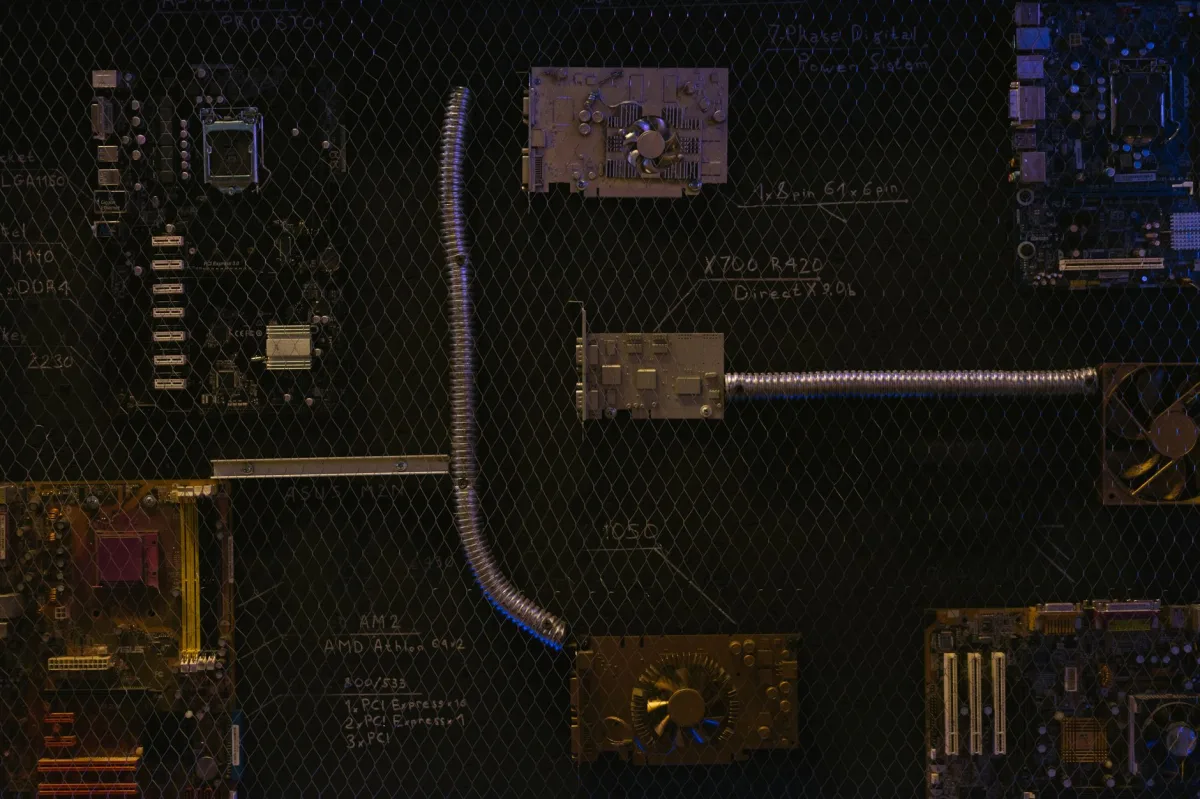
The 2026 motherboard market looks very different from 2022. DDR5 is mainstream, PCIe 5.0 appears on midrange boards, and Thunderbolt is no longer an Intel exclusive.
DDR5 vs DDR4
DDR5 offers higher bandwidth and lower power draw than DDR4. The performance uplift in real-world gaming and productivity is modest at launch speeds but grows as DDR5 matures and prices fall. For new builds in 2026, DDR5 is the only sensible path unless you're on a strict budget or reusing older memory.
PCIe 5.0 adoption
PCIe 5.0 doubles the bandwidth of PCIe 4.0, delivering up to 32 GT/s per lane. GPUs don't yet saturate PCIe 4.0 x16, so the benefit is small today. NVMe SSDs do benefit, especially on boards like the MSI MPG Z890 Carbon WiFi and Gigabyte X870E Aorus Master that route GPU and storage lanes intelligently.
Thunderbolt 4/5 on AMD boards
AMD's latest X870 and X870E chipsets include native Thunderbolt 4 support on many partner boards. That kills the old myth that Thunderbolt is an Intel-only feature, a point we'll come back to later.
Before You Buy: Prerequisites & Budget Planning
Start with three questions before opening any product page: which CPU, what case size, and how much can you spend on the board?
CPU socket compatibility
The CPU socket dictates which processors will physically fit. AMD uses AM5 for Ryzen 7000/9000 series and AM4 for older Ryzen 3000/5000. Intel uses LGA 1700 for 12th through 14th Gen Core. Buy the CPU first, then match the socket.
Budget tiers
A practical breakdown for 2026:
| Tier | Price Range (USD) | Typical Use |
|---|---|---|
| Budget | $90 – $140 | Office, light gaming, basic productivity |
| Midrange | $150 – $260 | Mainstream gaming, content creation |
| High-end | $280 – $450 | Enthusiast builds, overclocking, heavy I/O |
| Flagship | $480+ | Workstations, extreme storage, E-ATX boards |
Form factor options
ATX is the standard and gives you the most slots and headers. Micro-ATX shrinks the board slightly with fewer expansion slots. Mini-ITX is the smallest, perfect for compact cases, but mini-ITX motherboards are more expensive for the features you get and have fewer physical PCIe slots. E-ATX boards pack in everything but cost more and need bigger cases.
Socket vs Chipset: Unlocking Upgrade Paths
Sockets grab the headlines, but the chipset quietly decides your real upgrade path.
Socket is not the only factor
Two boards with the same LGA 1700 socket can support different CPUs based on chipset and BIOS. A Z790 board may need a BIOS update to run a brand-new chip, while an older B660 may never support it even though the CPU physically fits.
Chipset upgrade paths
Chipset families group features: AMD's B650, X670, X870, X870E differ in PCIe lane counts, overclocking support, and I/O. Intel's B760, H770, Z790, and Z890 do the same. AMD has a history of supporting several CPU generations on a socket, and BIOS updates often extend that support further.
BIOS updates and CPU support
Updating the BIOS can add support for newer CPUs on the same socket, but only if the chipset and VRM can handle the new chip's power demands. A board that officially supported a Ryzen 5 5600 might not officially support a Ryzen 9 7950X without a strong VRM and updated firmware.
Feature Checklist: Must-Have Connectivity & Power
Build a checklist based on your actual workload, not the marketing bullet list.
PCIe lanes & M.2 slots
Count how many M.2 SSDs and expansion cards you need today and might add in two years. Boards like the ASRock Z890 Taichi and Gigabyte X870E Aorus Master offer six M.2 slots, while mini-ITX boards typically offer one or two. PCIe 5.0 x16 lets you run a current GPU at full speed with headroom for the next generation.
USB, Thunderbolt & Wi-Fi
Front-panel USB-C has become standard on quality cases. Rear I/O should include USB 3.2 Gen 2, USB-C, and ideally Thunderbolt 4 for fast external storage. Built-in Wi-Fi 6E or Wi-Fi 7 saves you a PCIe slot and a dongle, but wired 2.5Gb or 10Gb Ethernet remains more reliable for high-throughput work and low-latency gaming.
Power delivery & cooling
The VRM (Voltage Regulator Module) supplies clean, stable power to the CPU. Boards with 16+2+1 or 20+1+2 phase designs, such as the Gigabyte Z690 Aorus Xtreme with its 20+1+2 Phases VRM Design, handle high-end chips and overclocking comfortably. Pair those designs with substantial VRM heatsinks to keep thermals in check.
Value vs Overkill: Why Cheaper Boards Can Win
The cheapest board that fits your CPU and case often delivers the best value per dollar spent.
Feature overkill on high-end boards
Flagship boards ship with dual 10Gb Ethernet, six M.2 slots, premium audio DACs, and Thunderbolt 4. Most users plug in one SSD, one GPU, and a wireless mouse. Paying $500 for ports you'll never use inflates cost without benefit.
Cost per feature
The MSI MPG Z690 Carbon WiFi loaded with quality at under $400 with PCIe 5.0 support, five M.2 slots, Wi-Fi 6E, and CPU overclocking features, shows how midrange boards deliver most flagship perks for half the price. The MSI MPG Z890 Carbon WiFi continues that approach in the current generation.
Case studies of budget boards outperforming expensive ones
In many PCWorld and IGN benchmarks, midrange B650 and B760 boards match high-end X670 and Z790 boards in gaming and single-threaded workloads. The extra phases only matter when pushing flagship CPUs with overclocking or running heavy all-core loads for hours.
Thunderbolt on AMD: Breaking the Intel Myth
Recent AMD chipsets with native Thunderbolt
For years reviewers and forum posts repeated that Thunderbolt was an Intel exclusive. That's no longer accurate. AMD's X870 and X870E platforms include native USB4 and Thunderbolt 4 support on many partner boards, including the Asus TUF Gaming X870-Plus WiFi and the Gigabyte X870E Aorus Master.
Compatibility and limitations
Not every AMD board supports Thunderbolt; entry-level chipsets like A620 may omit it. Always check the rear I/O diagram for the Thunderbolt or USB4 symbol. When present, performance and features mirror Intel implementations.
Use cases and performance
Thunderbolt 4 at 40 Gbps is ideal for fast external SSDs, multi-display docking stations, and capture cards. For users with USB4-equipped laptops, the same dock works on AMD boards, eliminating a second purchase.
Real-World Trade-offs: Performance in Practice
Gaming vs workstation workloads
Gaming cares about GPU throughput, fast memory, and a clean CPU power delivery. A B650 board paired with a Ryzen 7 7700X delivers nearly identical frame rates to an X670E board with the same chip. Workstation users running multi-threaded rendering or compilation benefit more from additional PCIe lanes, M.2 slots, and stronger VRMs.
Overclocking considerations
Overclocking requires a Z-series chipset on Intel (Z790, Z890) or an X-series chipset on AMD. The board needs a robust VRM (16 phases or more for flagship CPUs), good heatsinks, and BIOS options for fine voltage control.
Longevity and upgrade cycles
Buying a board with one tier of headroom extends useful life. Pick a board that supports today's CPU and tomorrow's anticipated upgrade on the same socket, and check that the chipset lane count still works for your expected storage expansion.
Best Practices for Selecting & Buying
Researching reviews & benchmarks
Read long-form reviews on PCMag, PCWorld, and IGN, focusing on thermal testing, VRM temperature under load, and BIOS stability. Benchmarks should include both stock and overclocked results across gaming and productivity suites.
Checking BIOS compatibility
Confirm the board ships with a BIOS that supports your CPU out of the box, or that a BIOS update is available before installing the CPU. Some boards ship with "BIOS Flashback" USB ports that let you update without a compatible CPU installed.
Warranty & support
Most consumer boards ship with a 3-year warranty. Workstation boards often extend to 5 years. Check the manufacturer's RMA policy and the BIOS update support window, since long firmware support translates to longer upgrade paths.
Common Mistakes & Troubleshooting
Skipping BIOS updates
Installing a brand-new CPU on an older BIOS is the single most common boot failure. Verify the board's support list and update BIOS before installing the CPU.
Mismatched power phases
Pairing a Ryzen 9 9950X or Core i9-14900K with a 6-phase VRM causes thermal throttling and instability. Match VRM strength to CPU power draw, not just socket type.
Ignoring future expansion
Buying a board with two M.2 slots when you plan to add three NVMe drives forces compromises later. Count expansion needs for the next three to five years before buying.
Other frequent pitfalls
Forgetting to check power connector compatibility with the PSU, choosing a board too large for the case, assuming integrated Wi-Fi is always better than wired networking, and overlooking the need for thermal pads on high-performance M.2 drives.
Who Is This Best For? Buyer Personas & Recommendations
| Target Persona | Recommended Option | Key Reason & Real-World Benefit |
|---|---|---|
| Budget gamer (1080p, esports titles) | ASRock B650M Pro RS WiFi or MSI B760M Edge Ti Wi-Fi | Affordable pricing, mature platform with BIOS stability, enough VRM for a Ryzen 5 7600 or Core i5-14400, and built-in Wi-Fi 6E. |
| Mid-range content creator (video, streaming) | MSI MPG Z890 Carbon WiFi or Gigabyte X870E Aorus Master | Five to six M.2 slots for storage-heavy projects, PCIe 5.0 for next-gen GPUs, Thunderbolt 4, and Wi-Fi 7 connectivity. |
| High-end enthusiast (overclocking, multi-GPU) | ASRock Z890 Taichi or Asus ROG Crosshair X870E Hero | Robust 20+ phase VRM, dual NICs (10Gb + 2.5Gb), six M.2 slots, and excellent cooling hardware for sustained overclocks. |
| Enterprise / Workstation (Threadripper, ECC memory) | ASUS Pro WS WRX90E-SAGE SE or ASRock WRX90 Creator | Server-grade PCIe lanes, ECC RAM support, multi-GPU certification, and long warranty windows for professional deployments. |