

Introduction: The Battle of the Operating Systems
What is Microsoft Windows?
Microsoft Windows is a proprietary operating system that has been shipped on billions of PCs since its first graphical release in 1985. Over the years it grew from a simple shell on top of MS‑DOS to a full‑featured platform that powers everything from home laptops to corporate data centers. Windows 11, the latest edition, focuses on a modern UI, integrated security features, and a built‑in compatibility layer for Linux called Windows Subsystem for Linux (WSL).
What is Ubuntu Linux?
Ubuntu is a free, open‑source Linux distribution maintained by Canonical Ltd. Launched in 2004, it is built on Debian and follows a six‑month release cadence with Long‑Term Support (LTS) versions every two years. Ubuntu’s philosophy—“humanity to others”—means the code is publicly available, community‑driven, and can be modified without paying a license fee. It is popular among developers, system administrators, and users who value transparency and control.
Both operating systems aim to give users a stable computing environment, yet they differ dramatically in licensing, development model, and the ecosystems that grow around them.
System Requirements and Installation
Windows 11 Hardware Requirements
| Component | Minimum | Recommended |
|---|---|---|
| CPU | 1 GHz or faster with 2 cores on a compatible 64‑bit processor | 3 GHz quad‑core Intel i5 or AMD Ryzen 5 |
| RAM | 4 GB | 8 GB or more |
| Storage | 64 GB SSD | 256 GB NVMe SSD |
| Graphics | DirectX 12‑compatible GPU with WDDM 2.0 driver | Dedicated GPU (RTX 3060 or equivalent) |
| Secure Boot & TPM | TPM 2.0 and Secure Boot | Enabled, with BIOS/UEFI update |
Windows 11 refuses to install on hardware that lacks TPM 2.0 or Secure Boot, a policy meant to improve security but that can block older machines.
Ubuntu Minimum and Recommended Specs
| Component | Minimum | Recommended |
|---|---|---|
| CPU | 1 GHz dual‑core x86_64 | 2.5 GHz quad‑core or better |
| RAM | 2 GB | 4 GB or more (8 GB for GNOME) |
| Storage | 25 GB SSD/HDD | 120 GB SSD (NVMe for best performance) |
| Graphics | Any driver supporting 1024×768 | Open‑source driver (Nouveau, AMDGPU) or proprietary NVIDIA driver |
| UEFI | Optional | Secure Boot supported (Ubuntu 22.04+ works out‑of‑the‑box) |
Ubuntu’s hardware demands are modest, which is why it runs comfortably on machines that struggle with Windows 11.
Dual‑Booting: Running Both Side‑by‑Side
Many users choose a dual‑boot setup to evaluate both platforms on the same hardware. Follow these steps:
- Back up all important data.
- Create a Windows recovery drive.
- Shrink the Windows partition using Disk Management (minimum 50 GB for Ubuntu).
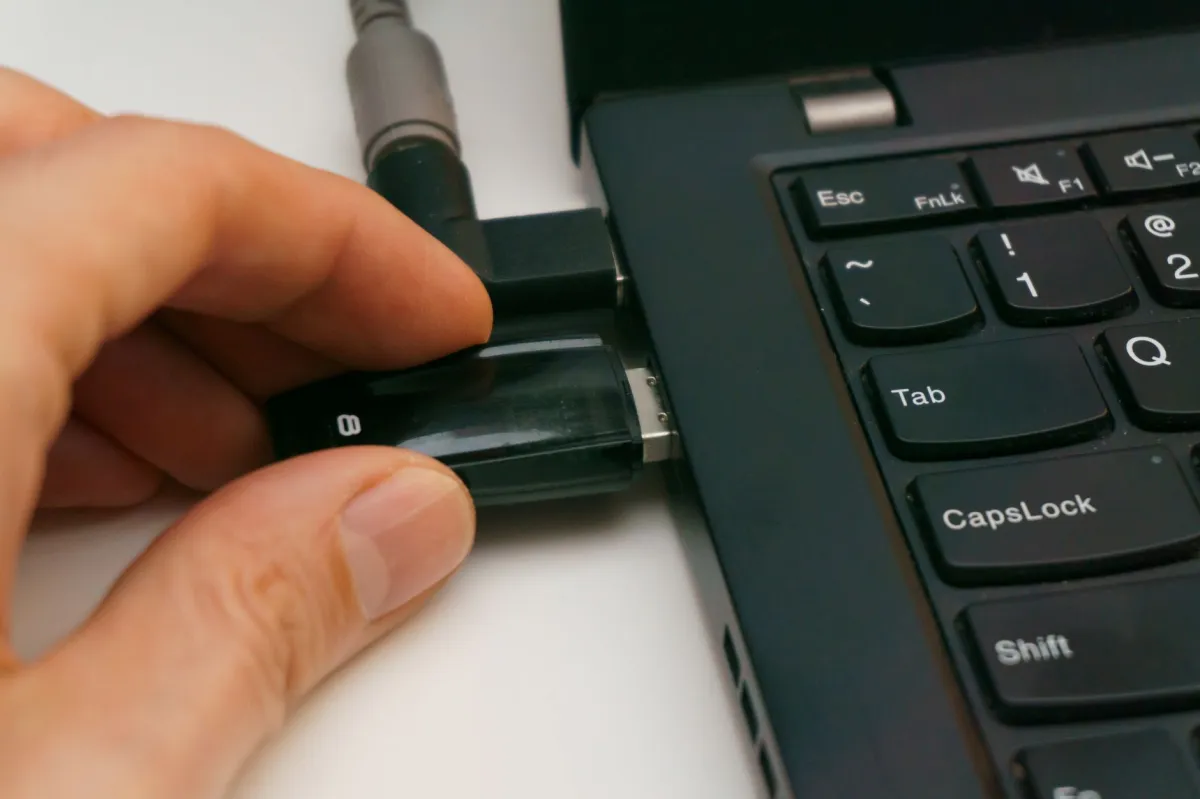
- Download the Ubuntu ISO, create a bootable USB with
RufusorbalenaEtcher. - Boot from the USB, choose “Install Ubuntu alongside Windows 11,” and let the installer handle the bootloader.
- After installation, disable Windows Fast Startup (Control Panel → Power Options) to avoid file‑system corruption.
Both OSes will appear in the GRUB menu at startup, letting you pick the one you need.
Core Feature Comparison: Windows vs Ubuntu
User Interface and Ease of Use
Windows 11 ships with a centered Start menu, rounded window corners, and a widget panel. Its UI is consistent across devices, and most users find it intuitive after a short learning curve. Ubuntu uses the GNOME desktop by default, which emphasizes a clean, activity‑centric workflow. GNOME’s “Activities Overview” replaces the traditional Start menu, and extensions can reshape the experience (e.g., Dash‑to‑Dock). For users who prefer a classic layout, Ubuntu offers official flavors such as Xfce (Xubuntu) or KDE Plasma (Kubuntu).
Software Compatibility and Ecosystem
Windows dominates the consumer software market. Nearly every commercial application—Adobe Creative Cloud, Microsoft Office, AutoCAD, and most enterprise suites—offers a native Windows version. Ubuntu’s software catalog consists of open‑source packages available through apt, Snap, or Flatpak. While many developer tools are native (Git, Docker, VS Code), mainstream productivity apps often require alternatives (LibreOffice, GIMP) or a compatibility layer like Wine.
Gaming and Graphics Performance
Gaming on Windows remains the gold standard. DirectX 12, Vulkan, and native driver support give Windows a performance edge. Ubuntu can run many games through Steam’s Proton, which translates DirectX calls to Vulkan. Benchmarks from 2024 show a 5‑10 % performance gap for AAA titles when using Proton versus native Windows. However, titles that rely on anti‑cheat systems (e.g., Valorant, Apex Legends) still refuse to launch on Linux. For GPU‑intensive workloads, Ubuntu’s open‑source drivers have caught up, but NVIDIA’s proprietary driver still delivers the highest frame rates on Linux.
Development Tools and Programming Environment
Ubuntu is the default platform for most server‑side development, cloud deployments, and container orchestration. The built‑in Bash shell, native package manager, and pre‑installed compilers make it a “ready‑to‑code” environment. Windows has narrowed the gap with WSL2, which runs a full Linux kernel in a lightweight VM. WSL2 offers near‑native file I/O speeds and GPU acceleration, letting developers compile Linux binaries from inside Windows. Still, many DevOps pipelines (Jenkins, GitLab CI) run on Linux agents, making Ubuntu a smoother fit for production.
Security, Privacy, and Updates
Ubuntu follows a least‑privilege model: the default user has no root rights; sudo must be invoked for system changes. Its firewall (UFW) is disabled by default but can be enabled with a single command. Security patches roll out through the Ubuntu Security Notices (USN) and are applied via apt update && apt upgrade. Windows 11 includes Windows Defender, Secure Boot, and a hardware‑rooted TPM requirement. While Defender now blocks many threats out‑of‑the‑box, Windows still experiences a higher volume of malware attacks due to its larger user base.
Pros and Cons: A Balanced Perspective

Windows: The Advantages and Drawbacks
- Advantages
- Broadest software compatibility, especially for commercial and gaming titles.
- Integrated graphics drivers and DirectX ecosystem.
- Strong enterprise tooling (Active Directory, Group Policy, Microsoft Endpoint Manager).
- Polished UI with extensive accessibility features.
- Drawbacks
- License cost (retail edition starts around $139, OEM licenses vary).
- Frequent forced updates and occasional forced restarts.
- Higher baseline hardware requirements.
- Pre‑installed bloatware on many OEM systems.
Ubuntu: The Advantages and Drawbacks
- Advantages
- Free, no licensing fees, and optional paid support (Ubuntu Pro).
- Lightweight on resources; runs well on older hardware.
- Transparent security model, rapid patch cycle.
- Native support for containers (Docker, LXC) and virtualization (KVM).
- Drawbacks
- Learning curve for users unfamiliar with the command line.
- Limited native support for some high‑profile professional applications.
- Occasional driver hiccups, especially with newer NVIDIA GPUs.
- Gaming support still trails Windows for the very latest titles.
Common Challenges and Troubleshooting
Dealing with Driver Issues in Ubuntu
Ubuntu’s “Additional Drivers” utility can locate proprietary drivers for NVIDIA and AMD GPUs. If a driver fails to load, try the manual approach:
sudo apt update sudo apt install ubuntu-drivers-common sudo ubuntu-drivers autoinstall sudo rebootIf the problem persists, consult the Ubuntu certified hardware list or search linux‑hardware.org for your specific model.
Managing Bloatware in Windows
Many OEMs ship Windows with trial software and pre‑installed utilities. To trim them down:
- Open
Settings → Apps → Apps & features. - Sort by size, uninstall anything you don’t recognize.
- Use PowerShell to remove built‑in apps:
Get-AppxPackage *bing* | Remove-AppxPackage - Consider a clean install using the Windows Media Creation Tool to start with a lean system.
Learning the Linux Terminal (CLI)
The terminal is the fastest way to manage Ubuntu. Start with these essential commands:
# Update package lists sudo apt update # Upgrade installed packages sudo apt upgrade -y # Install a new program (e.g., Git) sudo apt install git -y # Search for a package apt search ffmpeg # Show disk usage df -hPractice by completing simple tasks—updating the system, installing software, and navigating the file hierarchy. Online tutorials and the man pages (man apt) provide instant help.