

Understanding PDF Editing: What's Actually Possible?
PDF (Portable Document Format) was invented to preserve the look of a document across any device. That stability makes editing a PDF feel like trying to change a photograph with a pencil. Before you start, know what the format allows and where it draws the line.
A PDF is a container that holds text, vector graphics, raster images, fonts, and optional scripts. Its internal structure is a series of objects that reference each other, which is why simple text replacement often breaks layout.
The Difference Between Annotating and Full Editing
- Annotating adds layers on top of the original file – highlights, comments, sticky notes, or drawing marks. The underlying content stays untouched.
- Full editing modifies the original objects: replacing text, swapping images, re‑flowing paragraphs, or rearranging pages.
Why PDFs Are Difficult to Edit by Design
PDF creators embed fonts, fix line spacing, and lock objects to a page grid. When you open the file, the editor must reconstruct a layout that was never meant to be changed. This is why many free tools only support annotation.
OCR Technology: Turning Scans into Editable Text
If a PDF originates from a scanned image, there is no text layer at all. Optical Character Recognition (OCR) analyses the bitmap, creates a hidden text layer, and maps it to the visible characters. Modern OCR engines (e.g., ABBYY FineReader 2026, Google Cloud Vision) reach 98 % accuracy on clean scans but still need a review step.
Essential Requirements for PDF Editing
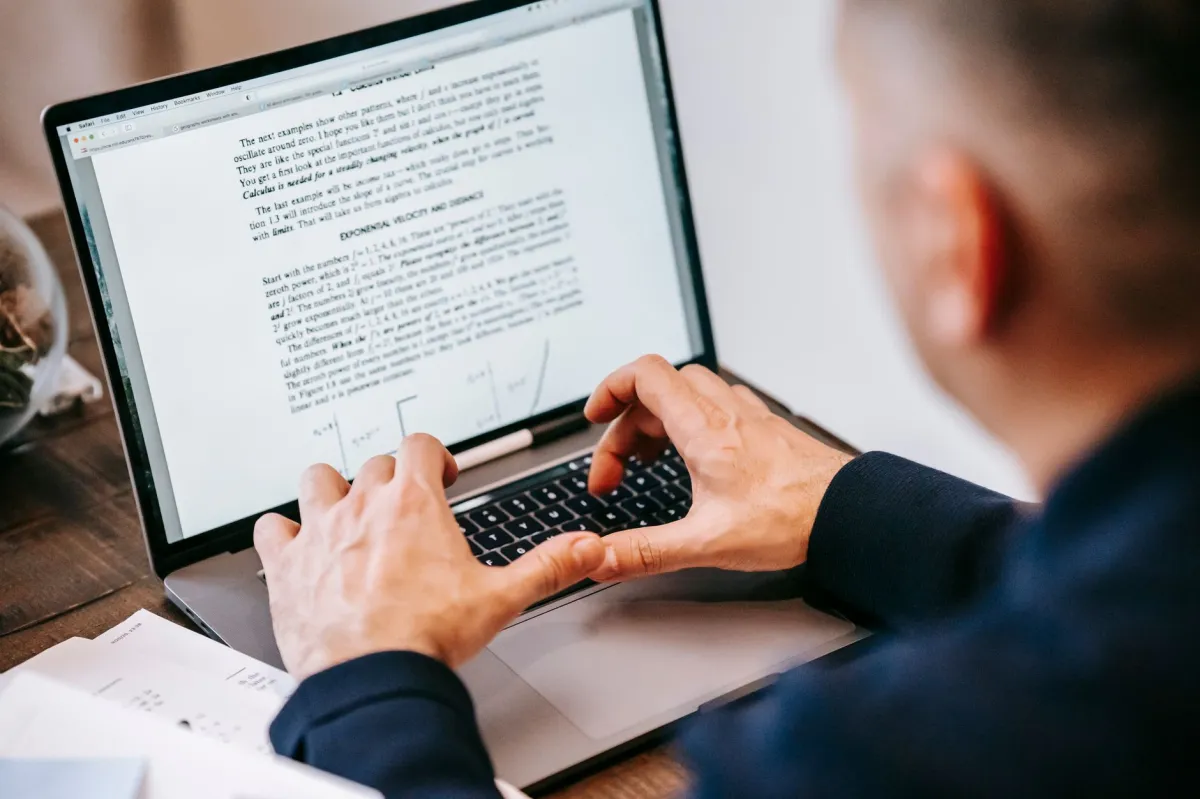
Choosing Your Platform: Web‑Based vs. Desktop
Web editors run in a browser, require no installation, and are ideal for quick tweaks. Desktop applications stay offline, handle large files (>500 MB), and give you more control over fonts and security.
Software Compatibility and System Requirements
| Tool | OS Support | Min. Specs (2026) |
|---|---|---|
| Adobe Acrobat Pro 2026 | Windows 11, macOS 14, Linux (via Wine) | 2 GHz CPU, 4 GB RAM, 200 MB disk |
| PDF‑XChange Editor | Windows 11, Windows 10 | 1.8 GHz CPU, 2 GB RAM, 150 MB disk |
| LibreOffice Draw | Windows 11, macOS 14, Linux | 1.6 GHz CPU, 2 GB RAM, 300 MB disk |
| Smallpdf (online) | Any modern browser | Any internet‑connected device |
Security Considerations for Sensitive Documents
When a PDF contains personal data, contracts, or financial statements, treat it like any other confidential file:
- Prefer offline editors that never transmit data.
- If you must use an online service, verify TLS 1.3 encryption and a clear privacy policy.
- Apply password protection or digital signatures after editing.
Step‑by‑Step Walkthrough: How to Edit Your PDF
Method 1: Using Professional PDF Editors (Adobe Acrobat & Alternatives)
- Download the installer from the vendor’s official site.
- On Linux, install the Windows version with Wine:
sudo apt-get update sudo apt-get install -y winehq-stable wine ~/Downloads/Acrobat_Pro_2026_Setup.exe - Open the PDF, click Edit PDF in the toolbar.
- Select the text block you want to change. The editor will show the original font name; you can replace it with any installed font.
- To replace an image, right‑click the picture, choose Replace Image…, and select a new file (PNG, JPEG, SVG).
- When you finish, click File → Save As and give the file a new version number.
Method 2: Leveraging Free Online PDF Editors
- Navigate to a reputable site such as PDFescape or Sejda.
- Drag your file into the upload zone. Most free tiers allow files up to 50 MB.
- Use the side panel to add text, images, or shapes. Changes are saved as a new file; the original remains on your device.
- Download the edited PDF. Remember to clear your browser cache if you worked with sensitive data.
Method 3: Converting PDF to Word for Heavy Text Edits
When you need to rewrite large sections, a word processor offers a more familiar environment.
- Open Adobe Acrobat and choose Export → Microsoft Word → Word Document. Set the conversion mode to Retain Flowing Text.
- In Microsoft Word 2026, edit the document. Pay attention to heading styles – they map back to PDF bookmarks.
- When editing is complete, save as DOCX, then return to Acrobat and select Create PDF to generate the final file.
Method 4: Using Built‑in OS Tools (Preview for Mac, Edge for Windows)
Both macOS and Windows ship with basic PDF capabilities.
- Preview (macOS 14): Open the PDF, click the Markup Toolbar, then choose Text to add new text boxes. For image swaps, drag a picture onto the page and resize.
- Microsoft Edge (2026): Right‑click a PDF, select Open with → Edge. Use the Annotate toolbar for highlights and comments. Edge does not support true text editing; it’s best for quick notes.
Feature Comparison: Which Editing Tool Should You Use?
| Feature | Adobe Acrobat Pro | PDF‑XChange Editor | LibreOffice Draw | Online Editors (e.g., Smallpdf) |
|---|---|---|---|---|
| Text manipulation & font matching | Excellent – auto‑detects embedded fonts | Good – requires manual font install | Fair – often substitutes missing fonts | Limited – adds new text layers only |
| Image replacement & scaling | Full control, supports SVG | Supports raster images, limited vector | Works but may rasterize vectors | Basic – PNG/JPEG only |
| Page management (merge, split, rotate) | Advanced – batch scripts via Action Wizard | Robust – drag‑and‑drop page thumbnails | Manual – copy/paste pages | Simple – one‑click merge/split |
| Digital signatures & form filling | Industry‑standard PKI support | Supports X.509 signatures | No native signing, use extensions | Form filling only, no signing |
Best Practices for Professional PDF Results
Maintaining Document Formatting and Alignment
When you replace a paragraph, keep the original line height and paragraph spacing. Most editors let you copy the style from an existing block (click Format Painter in Acrobat).
Optimizing File Size After Editing
Large PDFs often bloat after multiple edits. Run a “Save As Optimized” routine:
- In Acrobat, choose File → Save As Other → Optimized PDF.
- Set image downsampling to 150 dpi for screen‑only PDFs.
- Enable Compress Text and Line Art and remove unused objects.
Ensuring Accessibility (WCAG Compliance)
Accessibility isn’t optional for public documents. Verify that:
- All images have alt text (right‑click → Set Alternate Text).
- Headings use proper tags (H1, H2…) – Acrobat’s Reading Order panel helps.
- Document language is set (File → Properties → Advanced → Language).
Version Control: Always Save a Backup Copy
Before any major change, duplicate the file with a timestamp, e.g., Contract_2026-07-28_v01.pdf. Use Git LFS or a cloud storage solution that tracks revisions.
Common Mistakes and Troubleshooting
Fixing “Read‑Only” or Password‑Protected Files
- Open the PDF in Acrobat.
- Go to File → Properties → Security.
- If you know the password, enter it and select Change Settings to remove restrictions.
- Without a password, use a trusted removal tool (e.g., QPDF):
sudo apt-get install qpdf
qpdf --decrypt --password='' locked.pdf unlocked.pdf
Solving Font Substitution and “Gibberish” Text
When a PDF shows strange characters, the embedded font is missing. Install the missing font on your system or embed it via Acrobat’s Preflight → Fonts → Embed All Fonts.
Dealing with Layering and Overlapping Elements
Some PDFs contain invisible layers that hide text. Use the Layers pane (View → Show/Hide → Navigation Panes → Layers) to toggle visibility, then edit the visible objects.
Which PDF Editing Approach is Right for You?
Persona Mapping: Matching User Needs to Tools
| User Profile / Target Persona | Recommended Choice / Approach | Key Reason & Benefits |
|---|---|---|
| Beginner / Student | Free online editor (e.g., Smallpdf) | Zero installation, intuitive UI, sufficient for annotations and minor text tweaks. |
| Power User / Academic Researcher | Adobe Acrobat Pro 2026 | Full editing, OCR, batch processing, and robust accessibility tools. |
| Budget Hunter / Freelancer | PDF‑XChange Editor (free version) + occasional online tool | Rich feature set without subscription, low system footprint. |
| Enterprise User / Legal Department | Adobe Acrobat Pro + DLP‑approved cloud storage | Enterprise licensing, audit logs, digital signatures, compliance certifications. |
Final Verdict: The Most Efficient Way to Edit PDFs in 2026
If you need occasional changes, a reputable online editor saves time. For frequent, complex work—especially when security and accessibility matter—Adobe Acrobat Pro 2026 remains the most feature‑complete solution. Power users who prefer an open‑source stack can combine LibreOffice Draw for layout tweaks with QPDF for security operations.
Pick the tool that matches your workflow, follow the best‑practice checklist, and you’ll keep PDFs looking professional, lightweight, and compliant.