
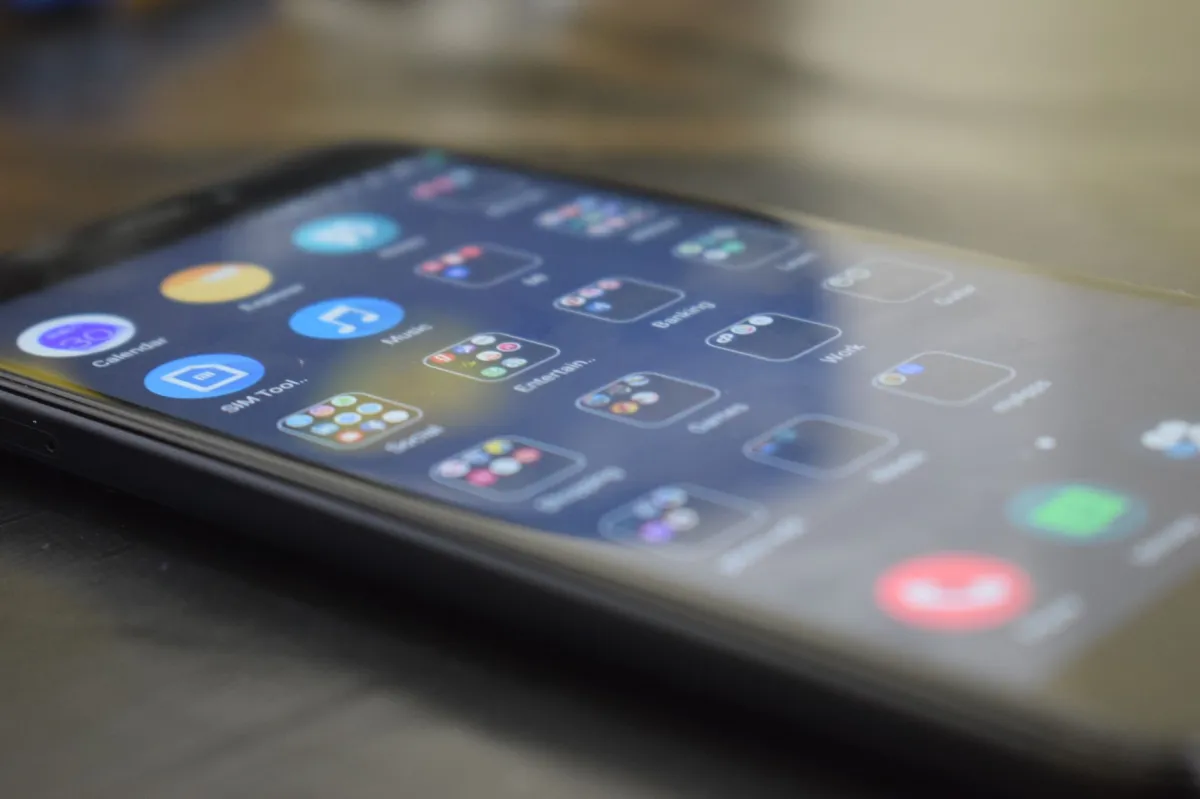
Resetting an Android device wipes everything you’ve added since it left the factory and restores the original operating system image. Whether you’re fixing a stubborn bug, preparing a phone for a new owner, or recovering from a security breach, a clean slate can save a lot of hassle. This guide walks you through the whole process, from backing up critical data to verifying that the reset truly erased everything.
Understanding the Android Factory Reset
What Happens During a Factory Reset?
A factory reset removes all user‑created data, installed applications, system settings, and linked accounts from the device’s internal storage. The operating system is re‑flashed with the stock image stored in a protected partition, leaving the device in the same state it was in when you first turned it on.
Android devices encrypt user data by default (AES‑256 on most phones since Android 10). When the reset process wipes the encryption keys, the remaining data becomes unreadable, effectively destroying it. The reset does not touch an external microSD card unless you explicitly format it.
When Should You Reset Your Device?
- Major software glitches – apps crashing system‑wide, boot loops, or persistent freezes.
- Malware infection – when you suspect a rogue app has gained deep access.
- Preparing for resale or donation – to protect personal information and remove FRP locks.
- Performance reset – after years of app bloat and misconfigured settings.
Before you reach for a reset, try a “Reset Settings” option (found in most skins under System → Reset options) which restores default preferences without erasing personal files.
Essential Prerequisites: Before You Wipe Your Data

Backing Up Your Photos and Contacts
Android offers several built‑in and third‑party backup routes. Choose the one that matches your OS version:
- Android 10‑12: Use Settings → Google → Backup to sync photos (via Google Photos), contacts, and app data to your Google Account.
- Android 13‑14: Turn on “Back up to Google Drive” and enable “Photos” and “Device Settings” toggles. You can also use the One Tap backup prompt that appears during the initial setup.
- Manufacturer clouds:
- Samsung – Settings → Accounts and backup → Samsung Cloud
- Xiaomi – Settings → Mi Account → Mi Cloud
- OPPO/Realme – Settings → OPPO Cloud
For extra safety, copy the DCIM, Pictures, and Contacts.vcf folders to a computer via USB or use adb:
adb backup -apk -shared -all -f backup.ab
adb pull /sdcard/DCIM ~/AndroidBackup/DCIM
adb pull /sdcard/Pictures ~/AndroidBackup/Pictures
adb pull /data/data/com.android.contacts/databases/contacts2.db ~/AndroidBackup/contacts2.db
Syncing Google Account Data
Open Settings → Google → Account services and verify that the following are toggled on:
- Sync Calendar
- Sync Chrome
- Sync Drive
- Sync Gmail
After the reset, signing back into the same Google Account will automatically restore this data.
Removing FRP (Factory Reset Protection) Locks
FRP ties the device to the last Google Account that was on it. To avoid a lockout after the reset:
- Navigate to Settings → Accounts → Google.
- Select each listed account and tap Remove account.
- For Samsung, Xiaomi, or other OEM accounts, repeat the removal in Accounts → [Manufacturer] account.
- Disable any screen lock (PIN, pattern, biometric) before you erase the device.
Charging Your Battery to 50% or More
A sudden power loss during the wipe can corrupt the recovery partition. Plug the phone into a wall charger or ensure the battery indicator reads at least 50 % before you start.
How to Factory Reset Android: Three Proven Methods
Method 1: Using the Settings Menu (Standard)
This is the safest route when the device boots normally.
- Open Settings.
- Tap System (or General management on Samsung).
- Select Reset options. You’ll see three choices:
- Reset Wi‑Fi, mobile & Bluetooth – only network settings.
- Reset app preferences – restores default app permissions.
- Erase all data (factory reset) – full wipe.
- Choose Erase all data (factory reset), then confirm.
- The device will reboot, display a progress bar, and finally land on the “Welcome” setup screen.
Method 2: Using Recovery Mode (Hard Reset for Frozen Phones)
When the OS won’t start, boot into the manufacturer‑specific recovery environment.
| Manufacturer | Button Combo (Power Off First) |
|---|---|
| Google Pixel | Power + Volume Down (hold 2 s) → Use Volume keys to select “Recovery mode” |
| Samsung (OneUI) | Power + Volume Up (hold 3 s) → Press Power once when “Recovery” appears |
| OnePlus (OxygenOS) | Power + Volume Down (hold 2 s) → Navigate to “Recovery” |
| Xiaomi (MIUI) | Power + Volume Up (hold 2 s) → Choose “Wipe data” |
| Motorola | Power + Volume Down (hold 3 s) → Select “Recovery” |
Once in recovery:
- Use the volume buttons to highlight Wipe data / factory reset.
- Press the Power button to confirm.
- If a confirmation screen appears, select Yes – delete all user data.
- After the wipe finishes, choose Reboot system now.
Method 3: Using Google Find My Device (Remote Reset)
Ideal for a lost or locked phone.
- On a computer, go to google.com/android/find and sign in with the same Google Account on the phone.
- Select the device from the top‑right dropdown.
- Click Erase device. You’ll be prompted to confirm and can optionally add a message to display on the lock screen.
- The command is sent over the internet; when the phone reconnects, it will perform a factory reset automatically.
Note: After a remote reset, FRP will still require the original Google credentials. Make sure you have them before initiating.
Best Practices for a Clean Reinstallation

Auditing Your App List Before Restoring
After a reset, reinstall only the apps you truly need. Use the “My apps & games” page in Google Play to sort by “Last used”. Remove long‑inactive apps to keep the system lean.
Updating System Firmware Immediately
Android 14 is the default OS in 2026, but many devices still run older builds. As soon as you reach the setup screen:
- Connect to Wi‑Fi.
- Navigate to Settings → System → System update.
- Download and install any available OTA patches. Updated firmware often includes security fixes that the factory image alone does not have.
Optimizing Security Settings for 2026
- Enable Google Play Protect (Settings → Security → Google Play Protect).
- Activate Biometric authentication (fingerprint, face) and set a strong PIN as a fallback.
- Turn on Find My Device and Device encryption (already on by default on Android 10+).
- Review app permissions individually; deny “draw over other apps” unless needed.
Common Mistakes and Troubleshooting
What to Do if Recovery Mode Won’t Load
Try these steps:
- Force‑restart the phone (hold Power for 12 seconds).
- Re‑connect the battery (if removable) to eliminate a low‑power glitch.
- Use
adb reboot recoveryfrom a PC (requires USB debugging enabled beforehand). - If still stuck, flash the stock firmware via Fastboot:
fastboot flash boot boot.img
fastboot flash system system.img
fastboot reboot
Fixing “Boot Loop” Issues After a Reset
A boot loop often means the system partition didn’t flash correctly. Solutions:
- Enter recovery and select Wipe cache partition then reboot.
- If that fails, re‑flash the full factory image using Fastboot (download the exact build from the OEM’s developer site).
- Check that the device’s bootloader is still locked; a mismatched bootloader can prevent a clean boot.
Recovering Data from an Accidental Wipe
Because Android encrypts data, recovery after a successful wipe is extremely unlikely. However, if the reset was interrupted:
- Stop using the device immediately to avoid overwriting.
- Connect the phone to a PC and run a forensic recovery tool such as Dr.Fone – Data Recovery (Android).
- If the device is rooted, you can pull the
/data/datadirectory viaadb pull, though most files will be scrambled without the encryption key.
Prevention is far easier: double‑check your backups before you start.
Which Reset Method Should You Use?
| User Profile / Target Persona | Recommended Choice / Approach | Key Reason & Benefits |
|---|---|---|
| Beginners – “I just want to sell my phone” | Settings → Erase all data (factory reset) | Guided UI, minimal risk of bricking, automatically clears FRP when accounts are removed first. |
| Power Users – “My phone is frozen and won’t boot” | Recovery Mode hard reset (Power + Volume Down, then wipe data) | Works without OS, bypasses software lock, can be combined with Fastboot flashing if recovery fails. |
| Enterprise Admin – “Remote wipe of a lost device” | Google Find My Device → Erase device | Zero‑touch remote execution, retains audit logs in Google Admin console. |
| Budget Hunters – “Cheap second‑hand tablet needs a clean start” | Settings menu (if functional) or Recovery Mode if tablet UI is limited | Same as smartphones; tablets use the same key combos with “Volume Up” for recovery on most brands. |
| Developers – “I need to unlock bootloader after reset” | Recovery Mode wipe + Fastboot unlock (fastboot oem unlock) | Factory reset clears data; bootloader unlock is separate and required for custom ROM flashing. |